

On desktop
1
Install the extension
Install the Crossword extension.
Available in theChrome Web Store2
Open your store
Open your store in Chrome. If it was already open, reload the page.
3
Talk to your Agent
The Agent appears on the page.
On iPhone
You need an iPhone with iOS 18 or later.1
Install the app
Install Crossword: Your Brand’s AI Agent.
2
Turn on the extension
Go to Settings > Apps > Safari > Extensions > Crossword and turn on Allow Extension. You do not need to turn on Allow in Private Browsing.
3
Set permissions to Allow
On the same screen, go to Permissions. You will see api.crswrd.ai and Other Websites. Tap Other Websites and set it to Allow. This also sets api.crswrd.ai to Allow.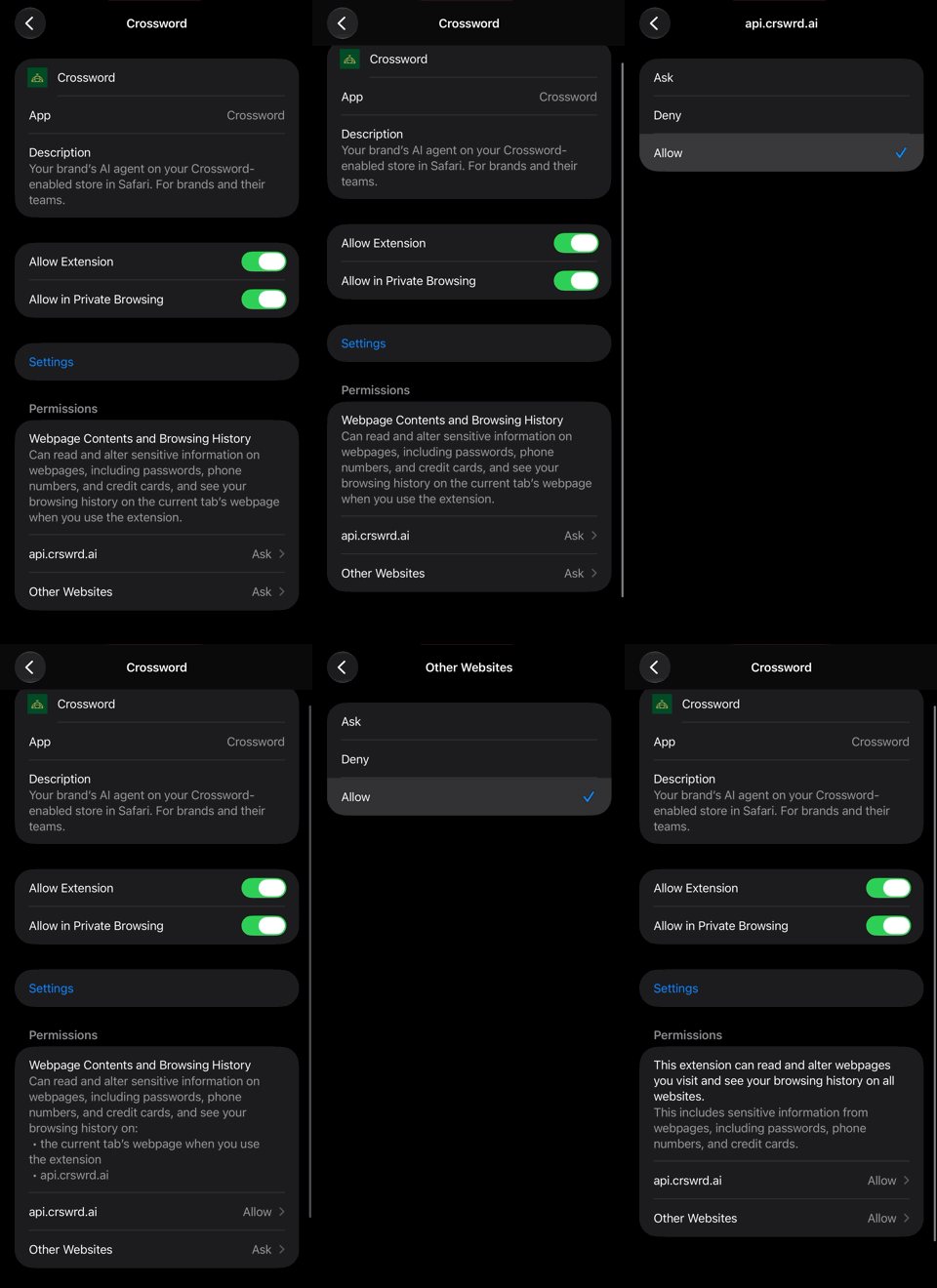
4
Open your store
Open your store in Safari. The Agent appears on the page.
If the Agent does not appear
- Reload the page. A page opened before you installed Crossword needs a reload.
- On iPhone, check the permissions. Go to Settings > Apps > Safari > Extensions > Crossword. Confirm Allow Extension is on and both settings under Permissions are set to Allow.
- Contact your Crossword team. If the Agent still does not appear, ask them to confirm your store is set up, and share the exact address you are testing.