

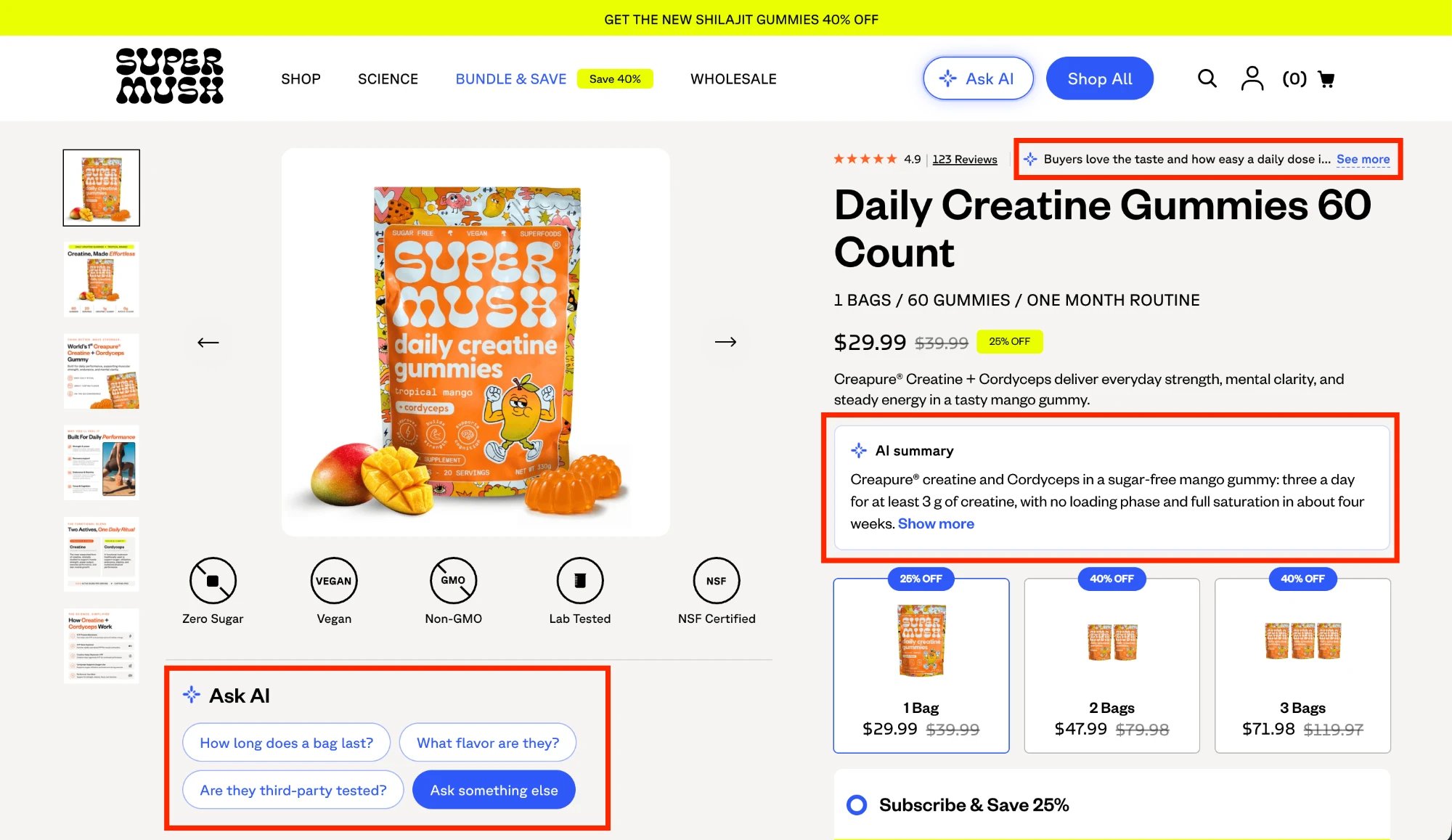
A product page with three dynamic components highlighted: a summarize link, an AI summary, and suggested questions
Component templates
Every component is built from one of five templates. You can create any number of components from a single template.Suggested questions
Displays a heading, a set of question chips, and an Ask something else button.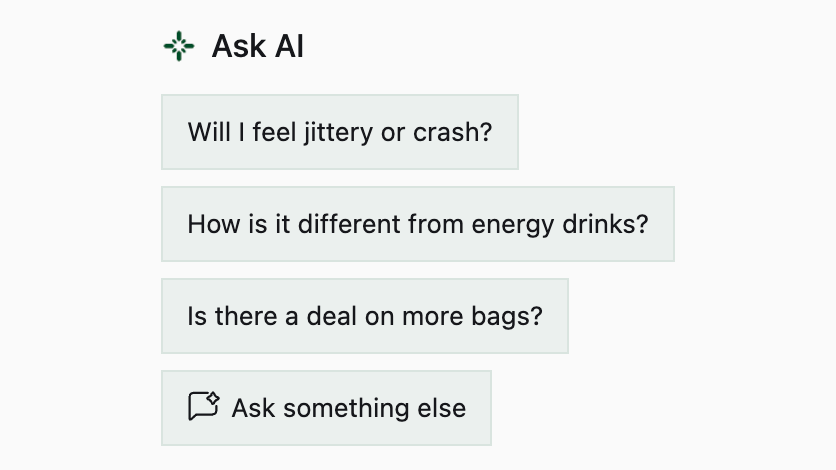
AI summary
Displays a one-line summary of the product. Show more expands a short list of key points.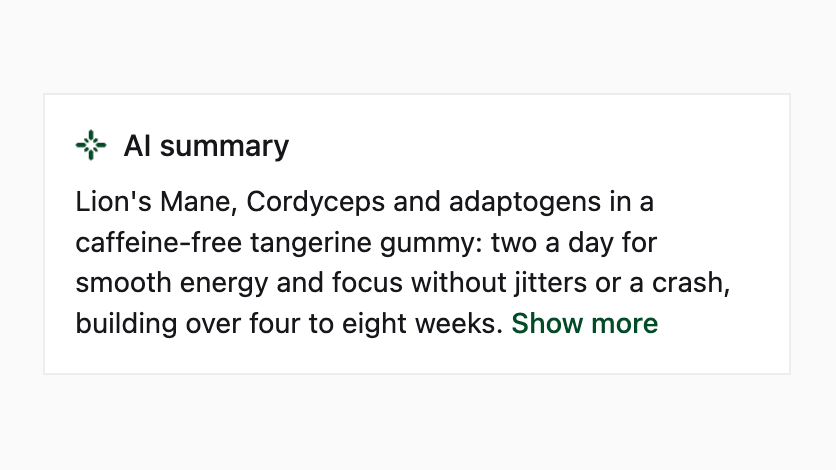
Product Q&A
Displays a Looking for specific info? box. The shopper selects or types a question, and the answer appears within the box.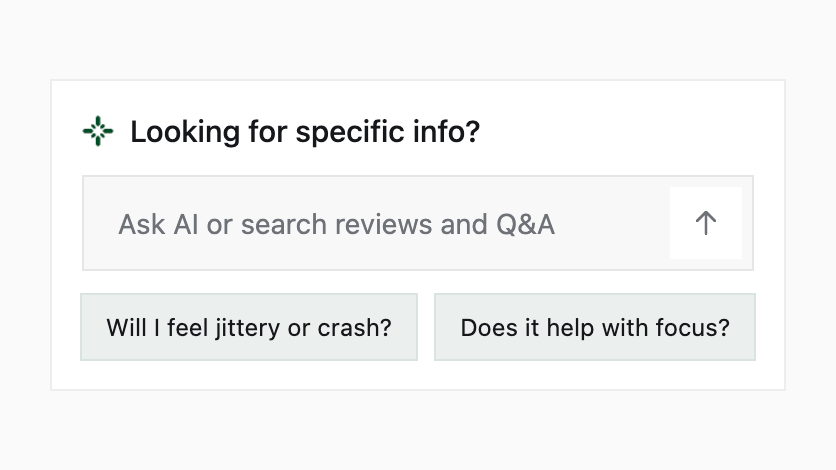
Product Q&A is a component template. It is distinct from the Product Q&A Agent and Journey, although you can select that Agent to answer it.
Ask AI button
A standalone button that opens the chat. You can position it anywhere on the page, for example within a section heading.
Summarize link
A standalone link that asks a single question on the shopper’s behalf, such as “Summarize the reviews”.
How dynamic components work
Three objects in the dashboard determine where a component appears and what it displays. The diagram shows how a page group, a component, and a Workflow combine to produce the content on your store page.In dynamic components, a Workflow is what generates a component’s content. It is separate from Agent Workflows, which run multi-step actions such as tracking an order.
Before you begin
The Crossword chat widget must already be installed on your site. Dynamic components load through the same installation snippet, so no additional installation is required. Components follow your channel’s rollout. A visitor who is not served the chat is not served components either. Read Deployment.Set up your first component
1
Create a page group
Open Page groups and choose how to match pages. You can match them by web address, use one page for each row of a table, or use the rows a saved query returns.
2
Create the component
Open Dynamic components, select Create component, and choose a template. Configure its style. If the template requires an answering agent, select one on the Settings tab.
3
Place the component
On the Placement tab, select the page group. Select Pick on the site to choose the exact position on your live page.
4
Generate its content
Open Workflows, create a Workflow, and add the component. Type the content yourself or turn on AI, then select Run now.
5
Verify on your store
Open a page in the group. The component appears once its content has been written for that page.
Limitations
- All shoppers on a given page see the same content. Content is not personalized for individual shoppers.
- You cannot edit AI-generated content by hand. To set the content yourself, switch the item to Typed.
- A rewrite cannot be undone.
- Each component can be written by only one Workflow.
- Each component has exactly one placement. To show the same component on two kinds of page, duplicate it and place the copy.